
The example
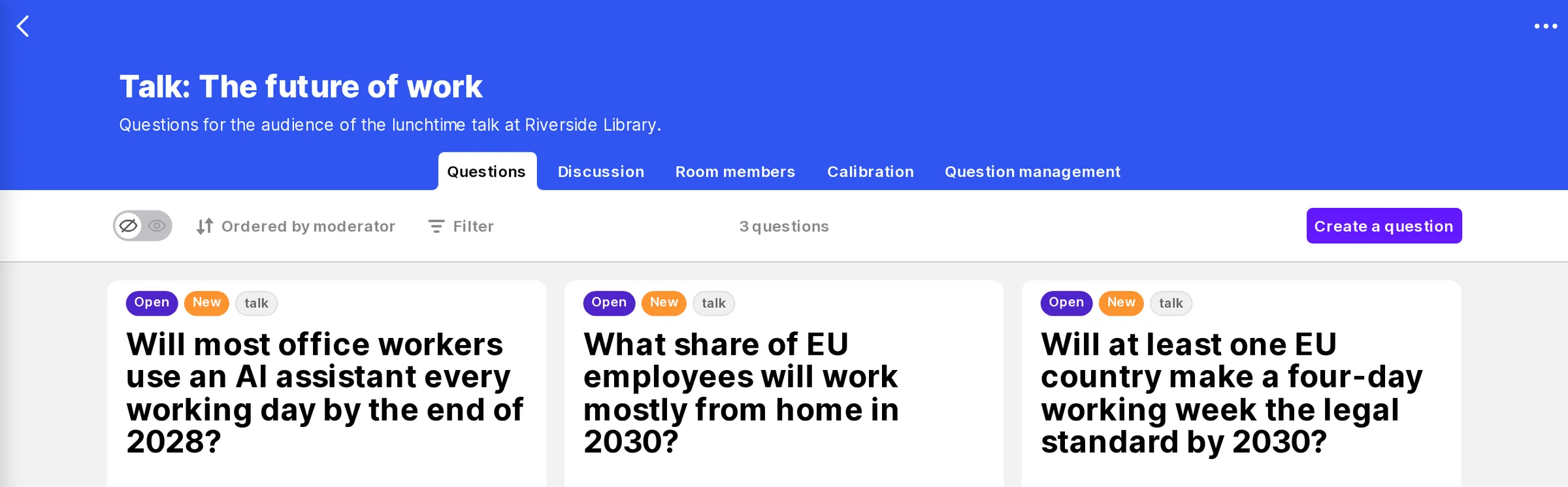
Maya is giving a 20-minute lunchtime talk, The future of work, at her local library. She has six slides and three questions she wants to put to the audience — for example, “Will at least one EU country make a four-day working week the legal standard by 2030?”
During the talk, people answer on their phones. After each question, Maya shows the whole room’s answer on the projector and talks about it. Nobody needs an account, and nobody sees the questions before Maya asks them.
You will need: a Confido workspace in which you can manage a room (as a moderator or owner), your slides as a PDF file or a Google Slides link, and a laptop connected to the projector. Prepare on a computer — the presentation editor doesn’t fit on a phone.
Part 1
Prepare your presentation
-
Put your questions in a room
Create a room for the talk and add your questions to it. Questions that work well are short, clear and have an answer that will be known one day. Yes/no questions and number questions (“What share of… ?”) both work.
Need inspiration? See what makes a good forecasting question.
-
Create the presentation
Open the room’s ⋯ menu in the top right corner and choose Create presentation.
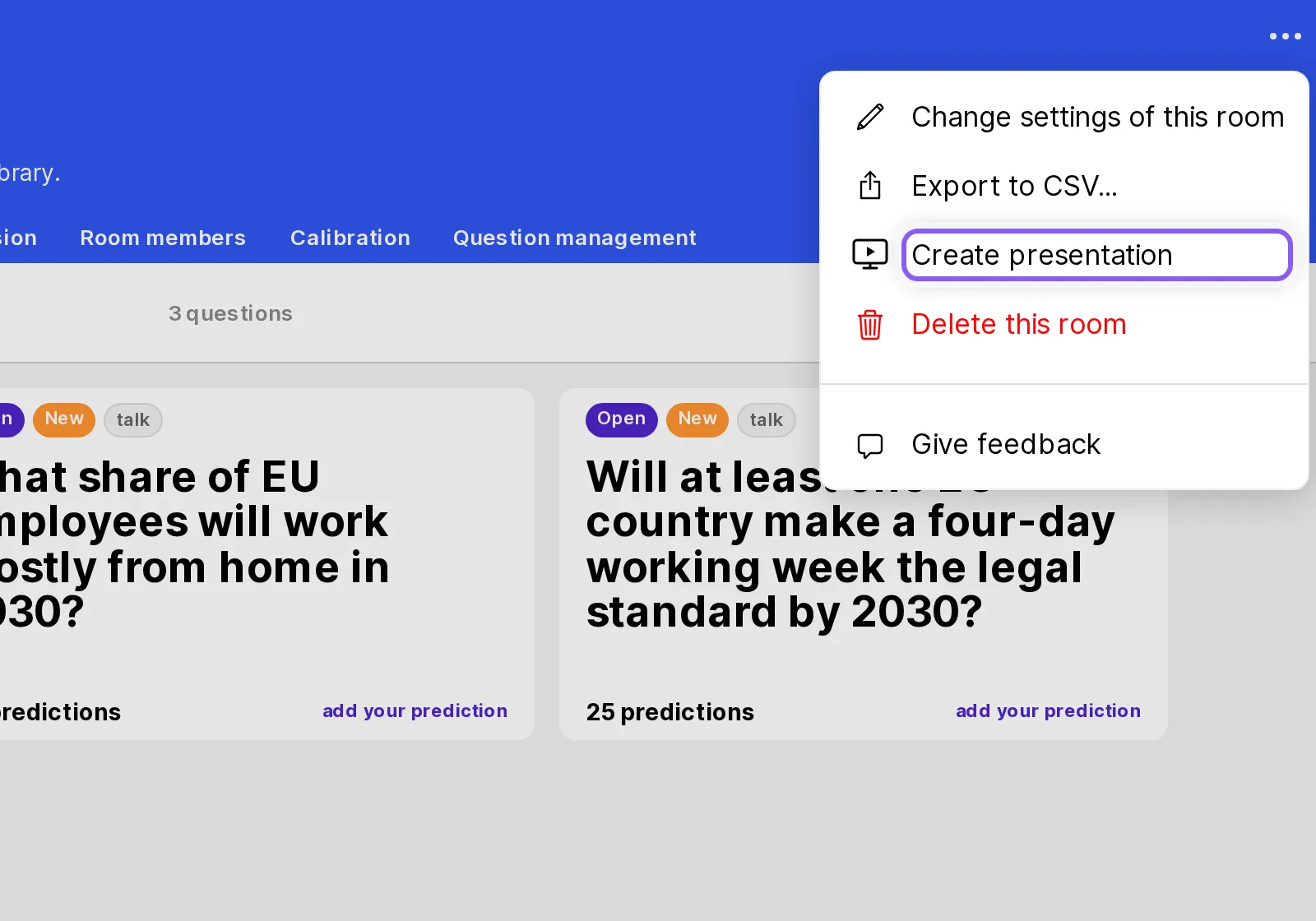
Confido asks one question first: what should people see on their own devices? (The projector always shows what you choose.)
- One question at a time — the right choice for a talk or an event. Your questions stay hidden until you ask them, and the answers stay hidden until you reveal them.
- The whole room, guided — for team meetings in a room people already use. Everyone’s screen follows you from question to question, but nothing in the room is hidden or changed.
- The whole room, free — for small, informal discussions. Only the projector follows you; everyone browses on their own.
With one question at a time, you also choose what happens when you finish. Keep what we covered is usually what you want: the questions you revealed stay visible with their results, so people can look at them again after the talk.
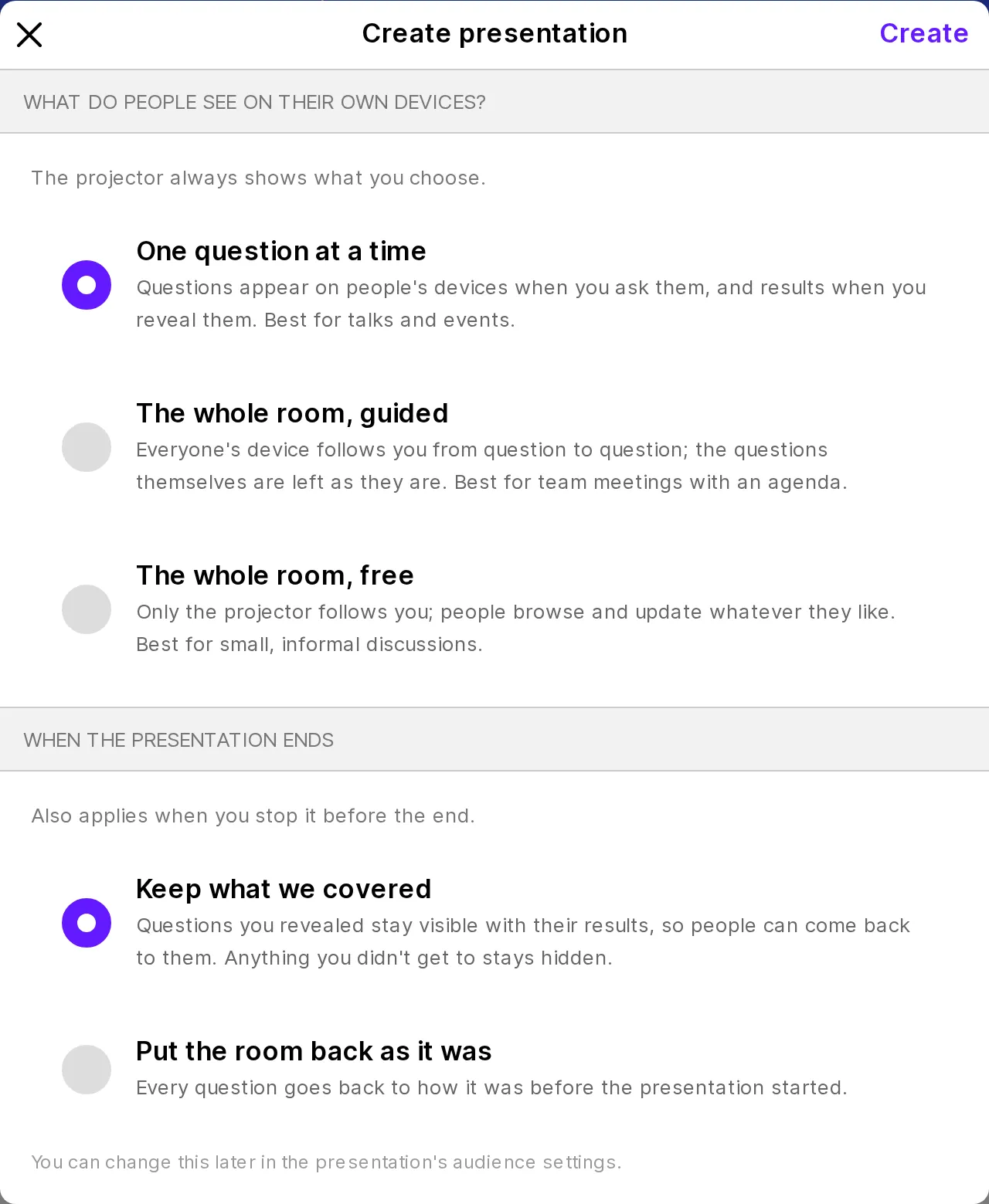
You can change this later with the Audience button above your presentation.
-
Add your slides
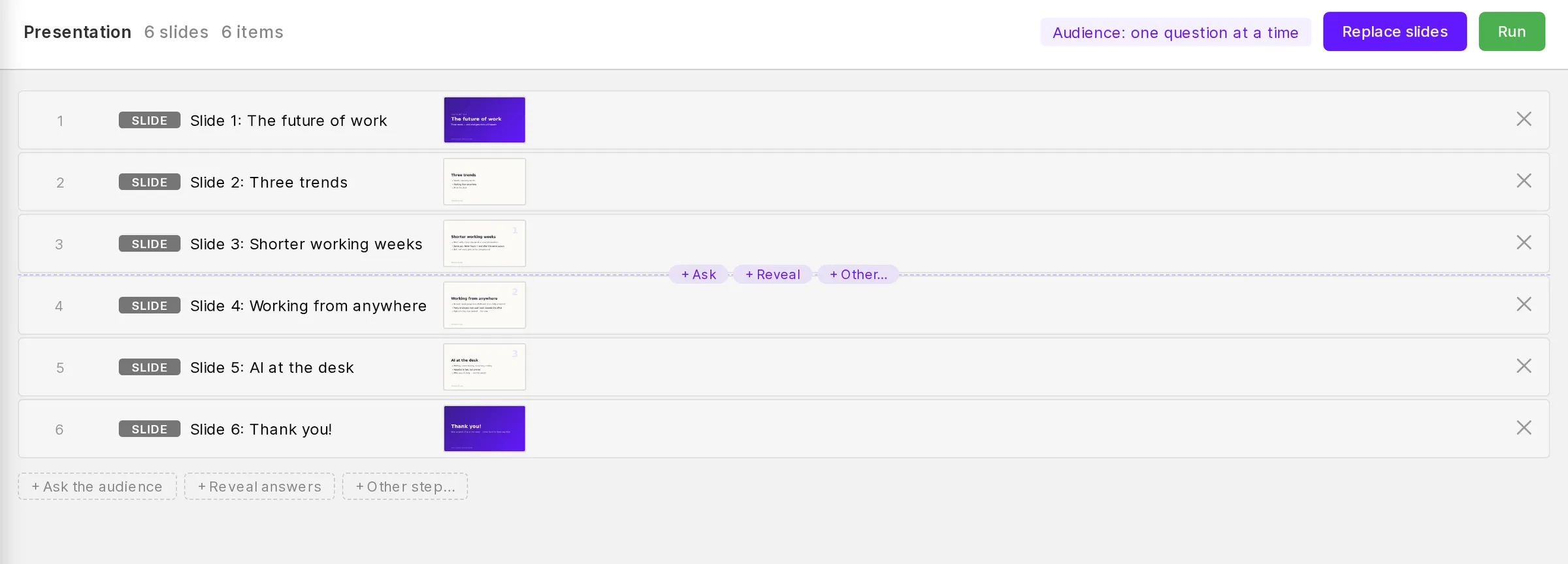
Click Upload slides and choose your PDF — or paste a link to a Google Slides presentation that is shared with “Anyone with the link”. Export your slides to PDF from PowerPoint, Keynote or Google Slides if you need to.
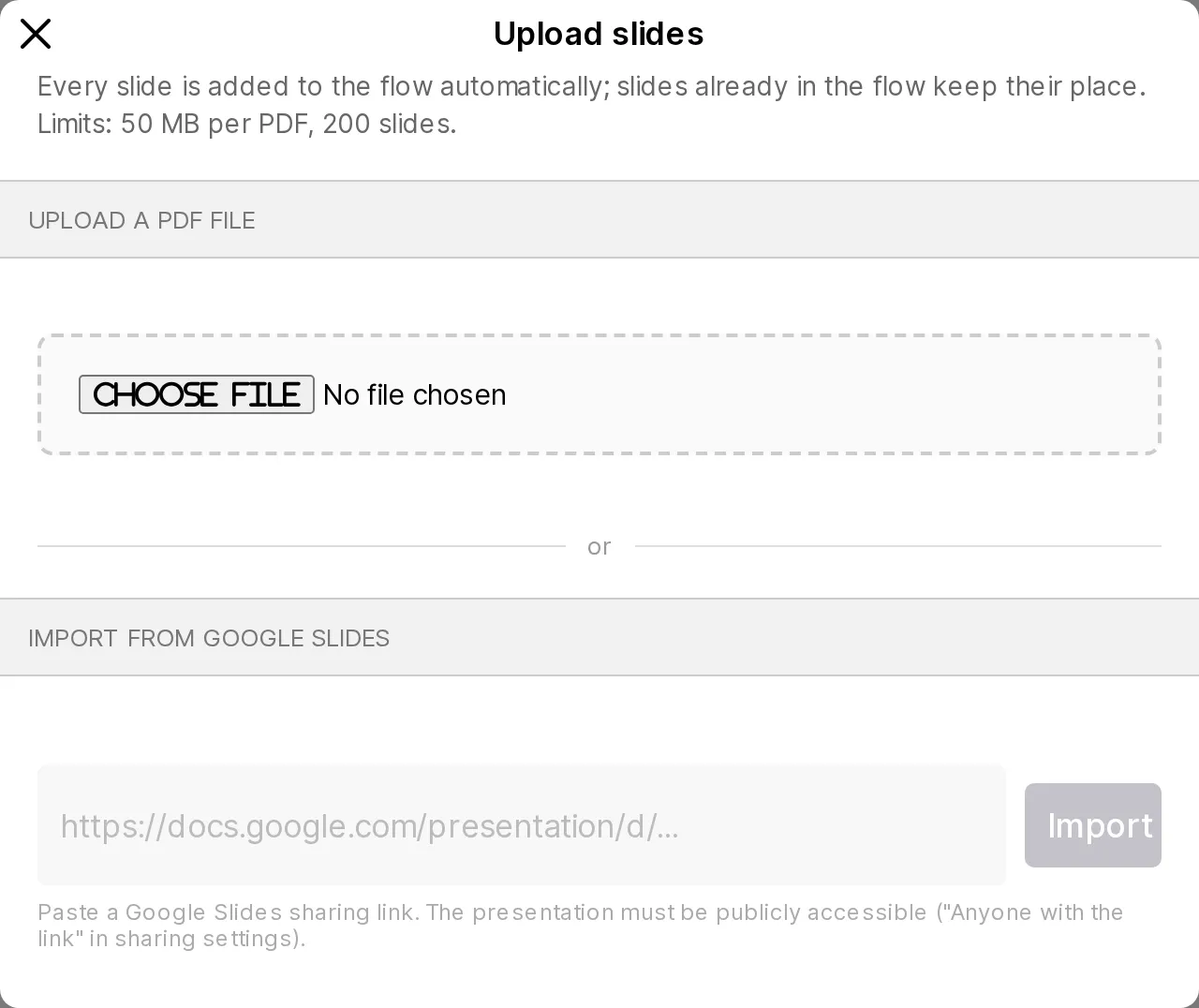
Every slide becomes one step of your presentation, in order. Point between two steps and small buttons appear — + Ask, + Reveal and + Other… — to put something between your slides.
-
Let people join with a QR code
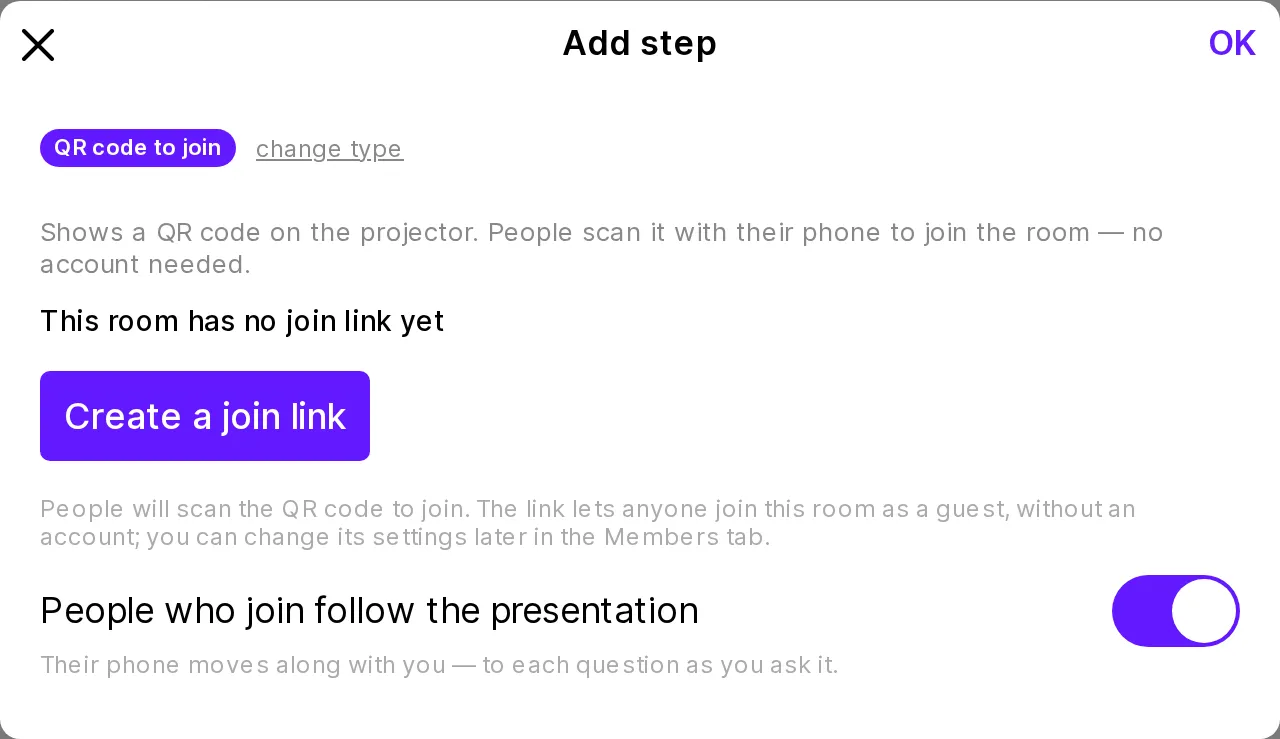
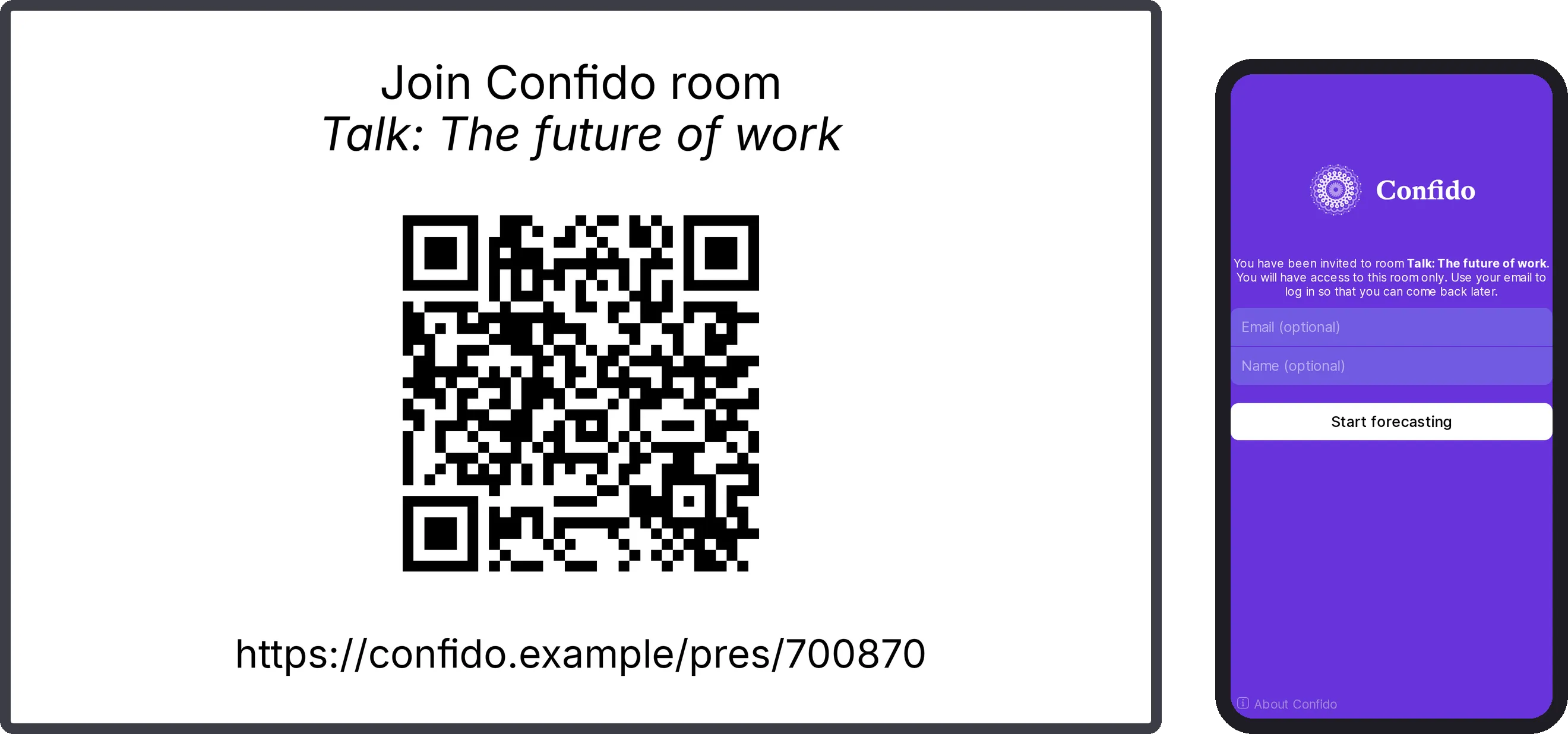
After your title slide, add + Other… → QR code to join. When this step comes up, the projector shows a large QR code; people scan it with their phone camera and they are in — no account, no app to install.
If your room doesn’t have a join link yet, click Create a join link right there. Leave People who join follow the presentation switched on: their phones will then move along with you, so they always see the question you are asking.
-
Ask your questions
Put a question where it belongs in your talk: point after the slide that introduces it and click + Ask. Choose the question, and how to reveal the answers:
- Right after — the first click shows the question, the next click shows everyone’s answer. This is the usual choice.
- Later — if you want to show a slide or discuss first. Add a + Reveal step wherever you want the answers to appear.
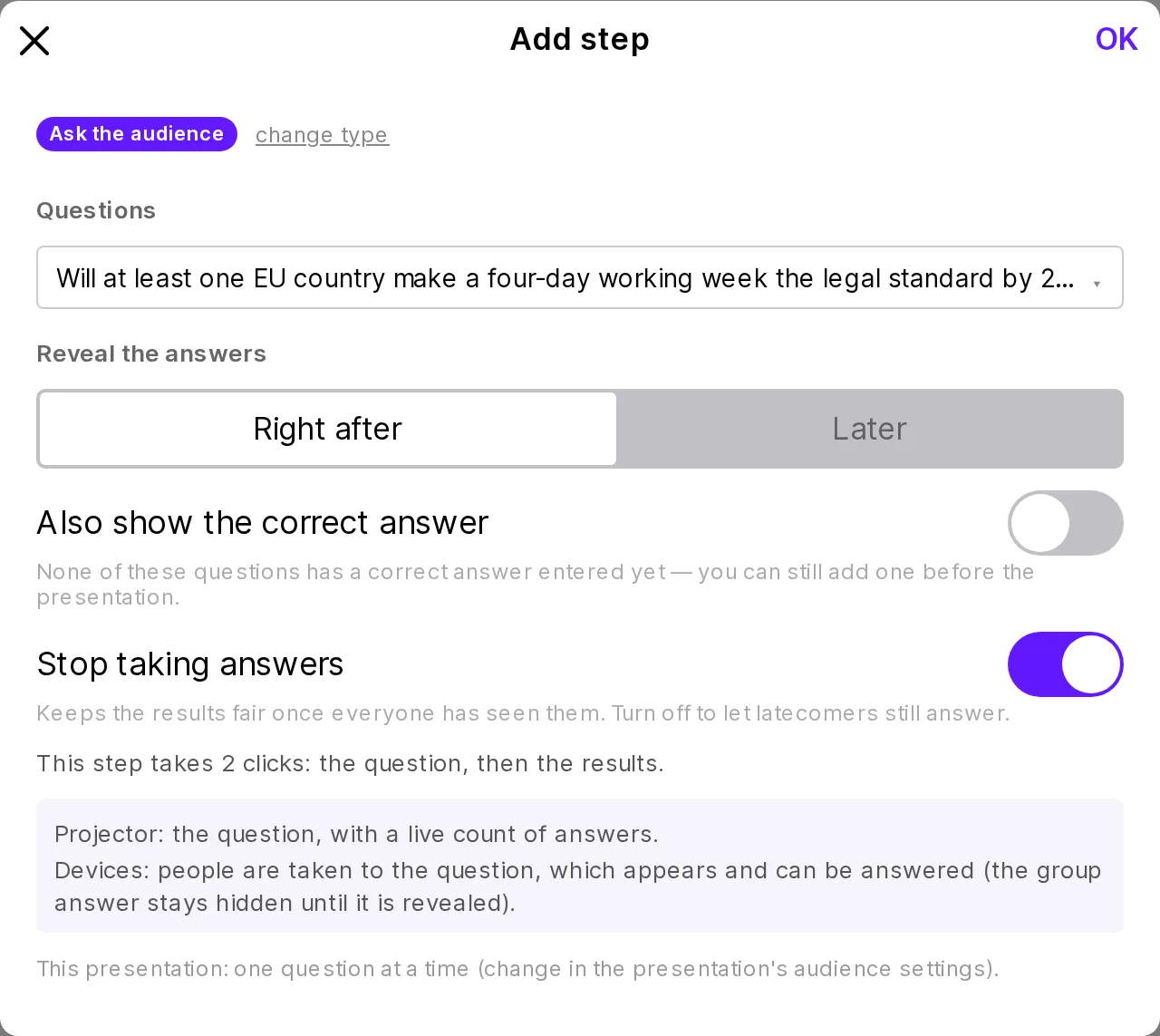
Two optional switches decide what happens when the answers are revealed. Also show the correct answer works when you have entered one — handy for a quiz. Stop taking answers closes the question so that nobody changes their answer after seeing the group’s.
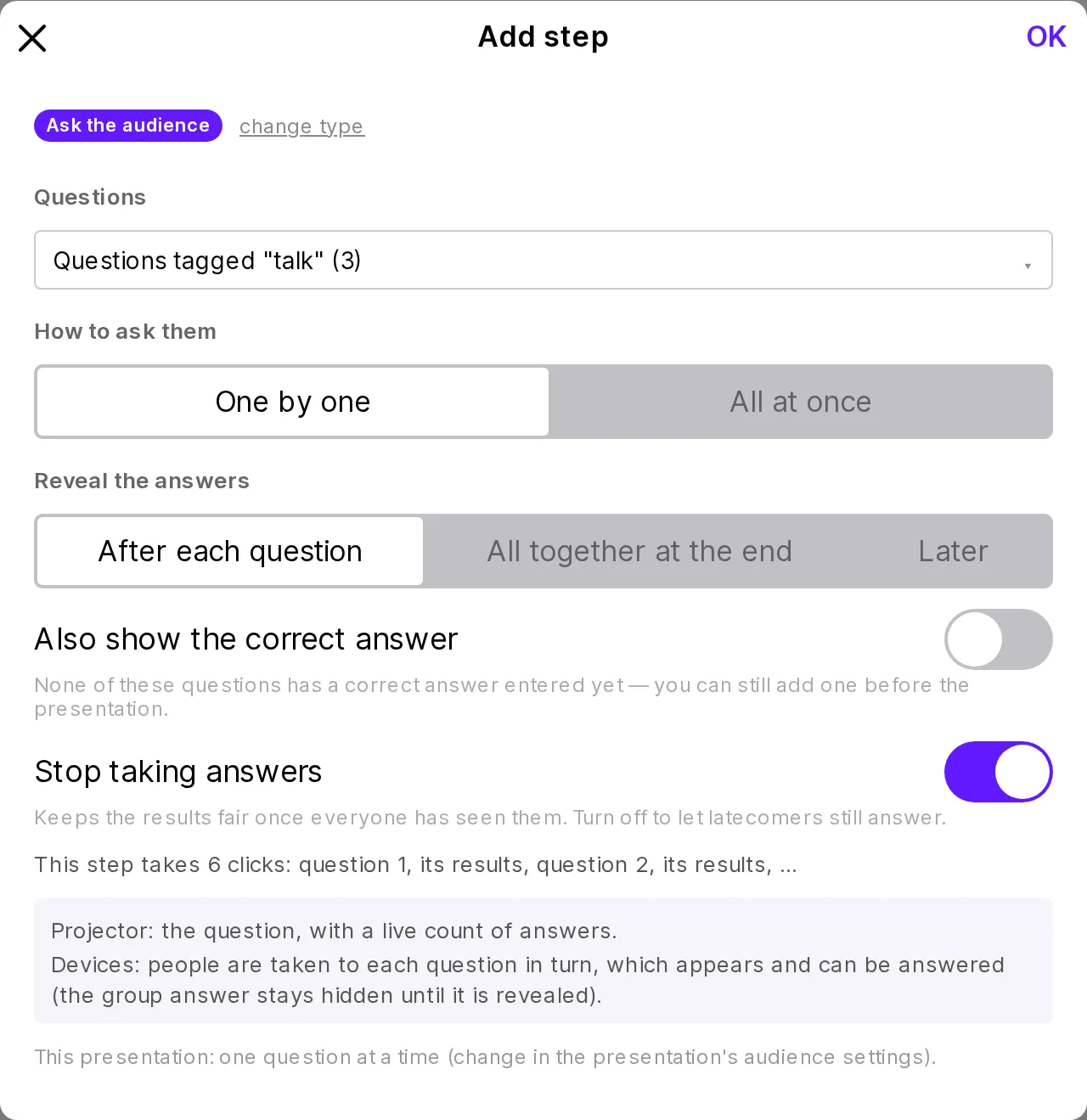
Several questions? You don’t have to add them one by one. Choose several questions (or all questions with the same tag) in one Ask step, and decide whether to ask them one by one or all at once — and whether to reveal the answers after each question, all together at the end, or later. The step tells you how many clicks it will take.
-
Check the order and add notes for yourself
Your presentation is now a list of steps — slides, the QR code and your questions. Drag a step to move it, and click the ⚙ next to a step to change it. A Note for yourself (under + Other…) is shown only to you while presenting — a reminder like “wait until most people have scanned the code”.
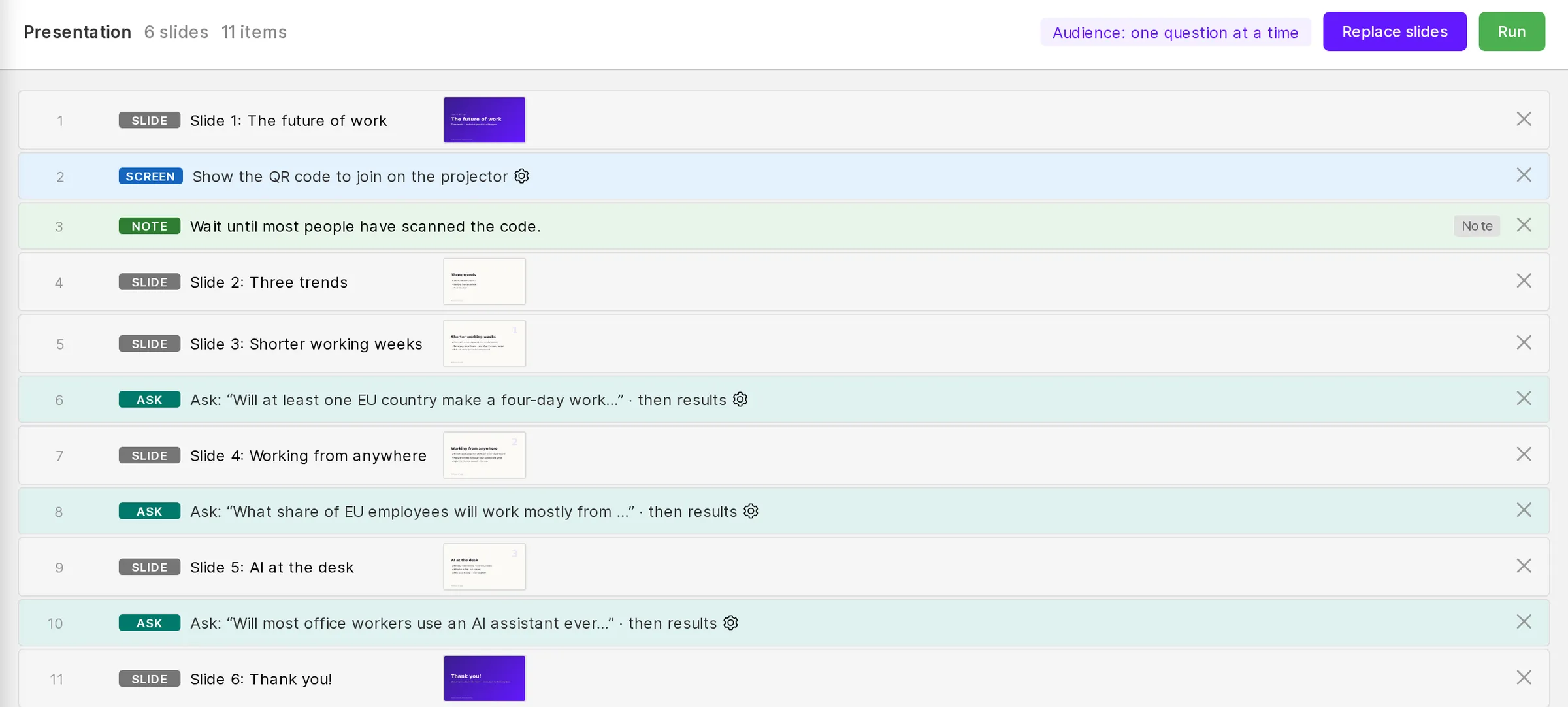
Click Save when you’re done. It’s a good idea to do a test run with a phone in your hand before the real thing.
Part 2
Give your talk
-
Start the presentation
Click Run. With one question at a time, Confido first tells you what will happen: your questions are hidden from participants until you ask them.
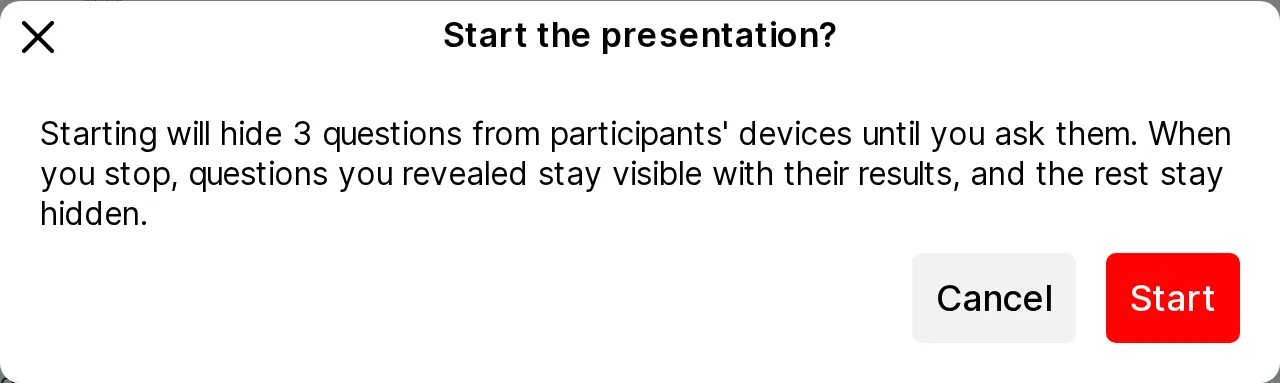
A new window opens — this is what your audience sees. Drag it to the projector screen and press F11 to make it full screen. Keep the Confido tab on your laptop: that’s your control panel.
-
Everyone joins
When you reach the QR code step, people scan the code. Their phone opens the room; typing a name is optional. Then they just wait for your first question.
-
Ask — and watch the answers come in
Move on with →, the space bar or a presentation clicker. When you reach a question, it appears on the projector and on every phone at the same time. People answer by dragging a slider or picking a number, and the projector shows how many have answered so far.
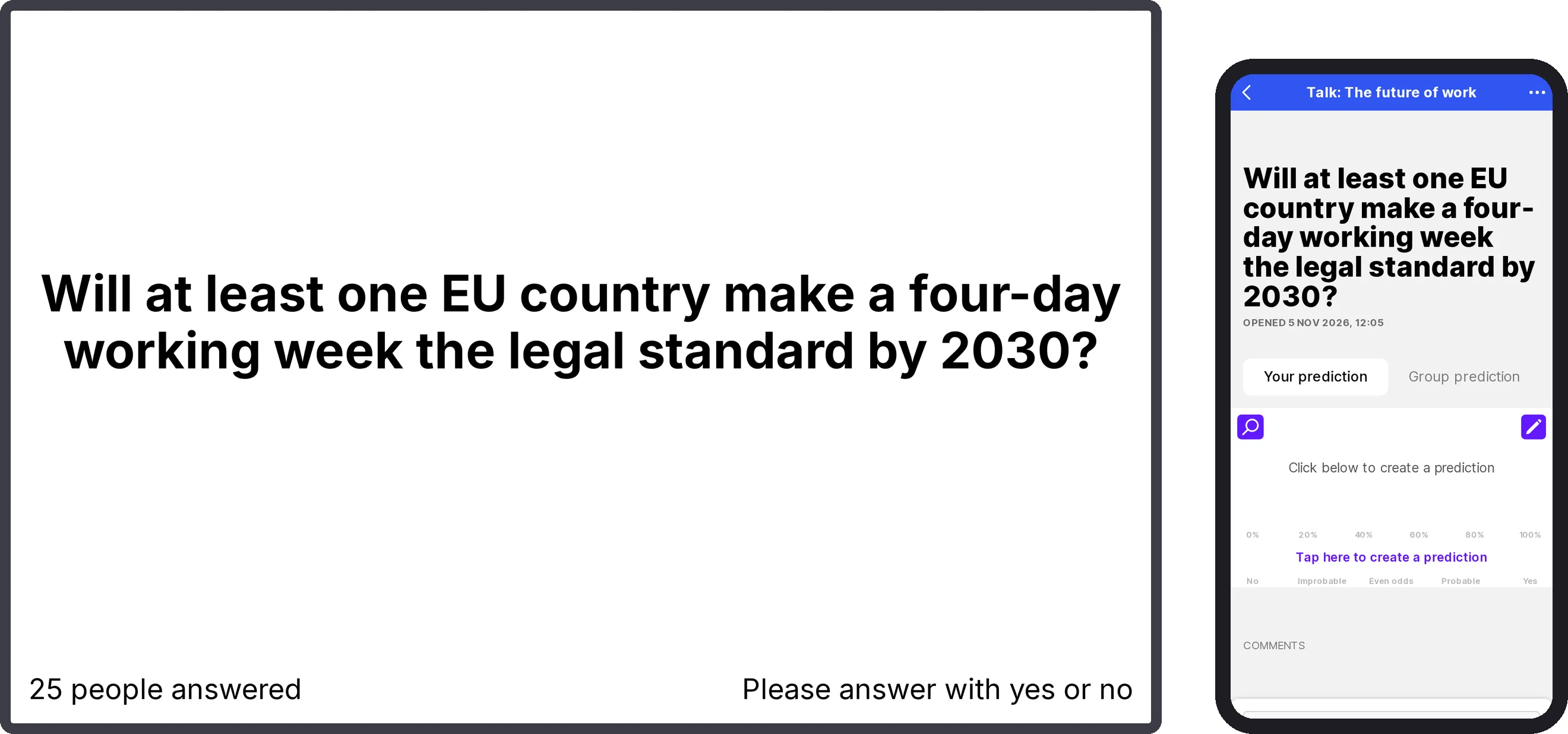
The group’s answer stays hidden while people are answering, so nobody is swayed by the others.
-
Reveal the answers
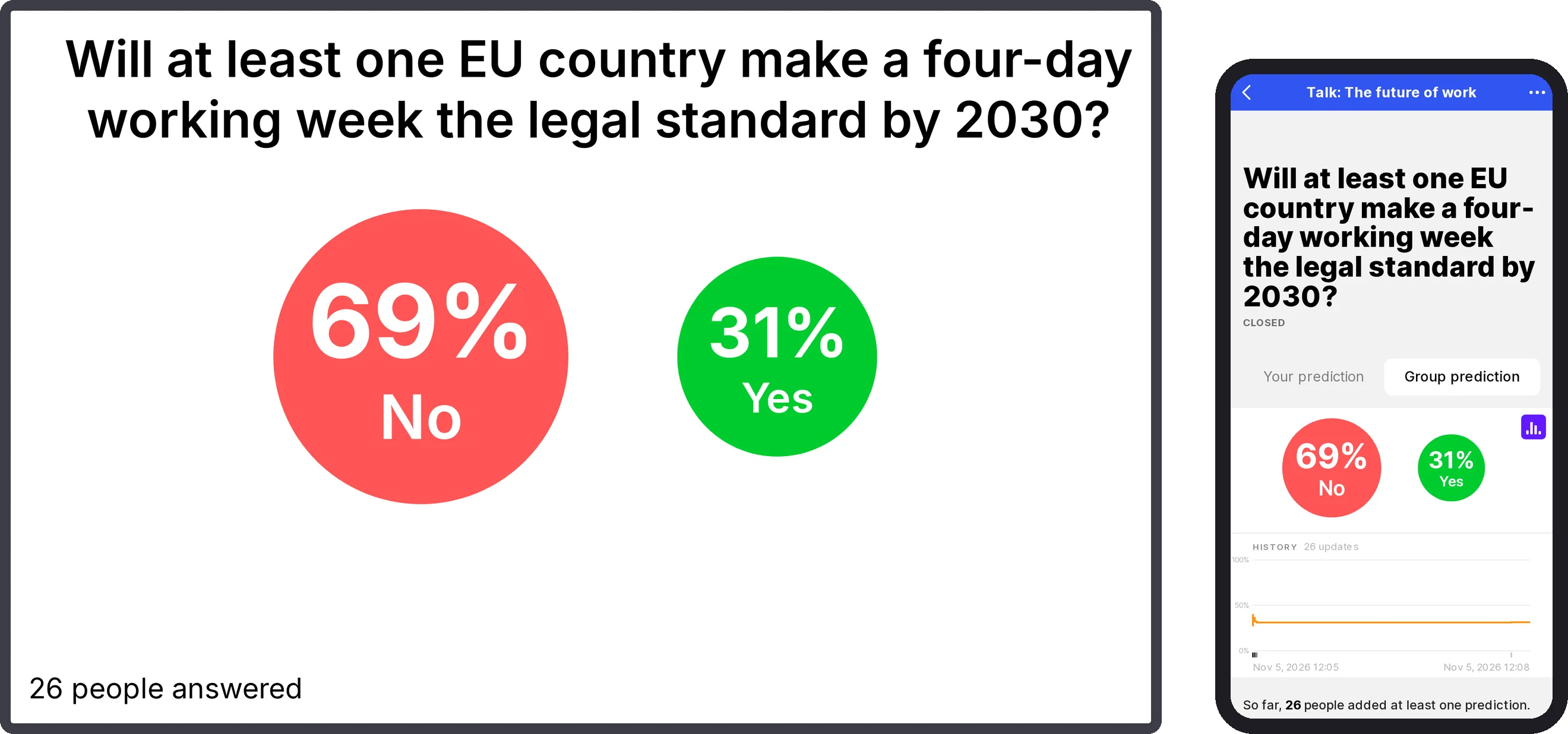
Click once more and the projector shows what the whole room thinks — and so does every phone. This is the moment for discussion: Why are we so sure? Who thinks otherwise, and why?
-
Stay in control
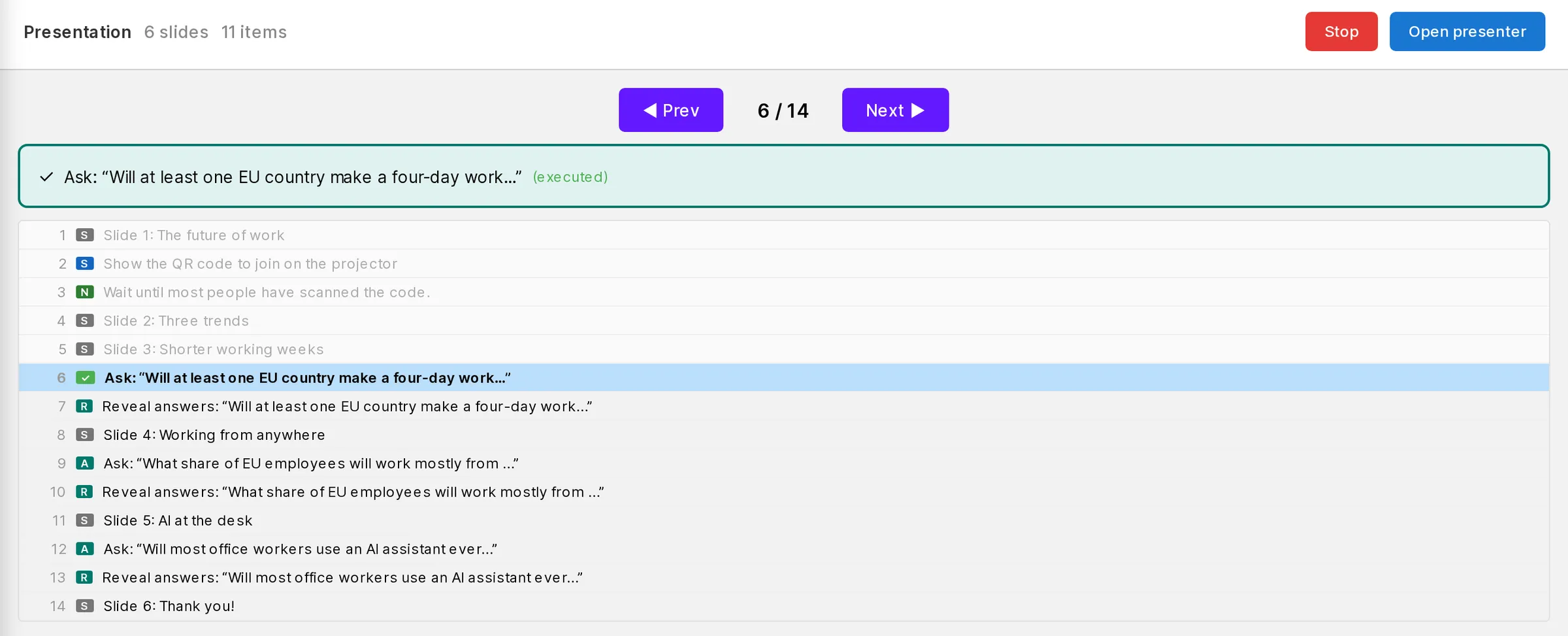
The Presentation tab on your laptop shows where you are and what comes next. Click any step to jump to it — for example to show a question’s results again during the Q&A. Going back is safe: questions are not asked twice.
-
Finish
After your last slide, click Stop. With Keep what we covered, the questions you revealed stay in the room with their results — people can come back to them later, and you can follow how the answers change over time. Stopping early works the same way.
Part 3
Tips and other uses
Before the talk
- Do a test run: start the presentation, scan the code with your own phone and click through.
- Start with an easy warm-up question so that people get used to answering.
- Keep each question on the projector long enough — 30 to 60 seconds is usually plenty.
Not a talk? For a team meeting in a room people use every day, choose The whole room, guided: everyone’s screen follows you, and nothing in the room is hidden or changed. For an informal discussion, choose The whole room, free and let people browse on their own while the projector follows you.
Advanced steps. Under + Other… → Advanced steps you will find single moves for special situations — showing a prediction timeline, comparing answers before and after a discussion, or opening and closing particular questions. Most talks never need them.